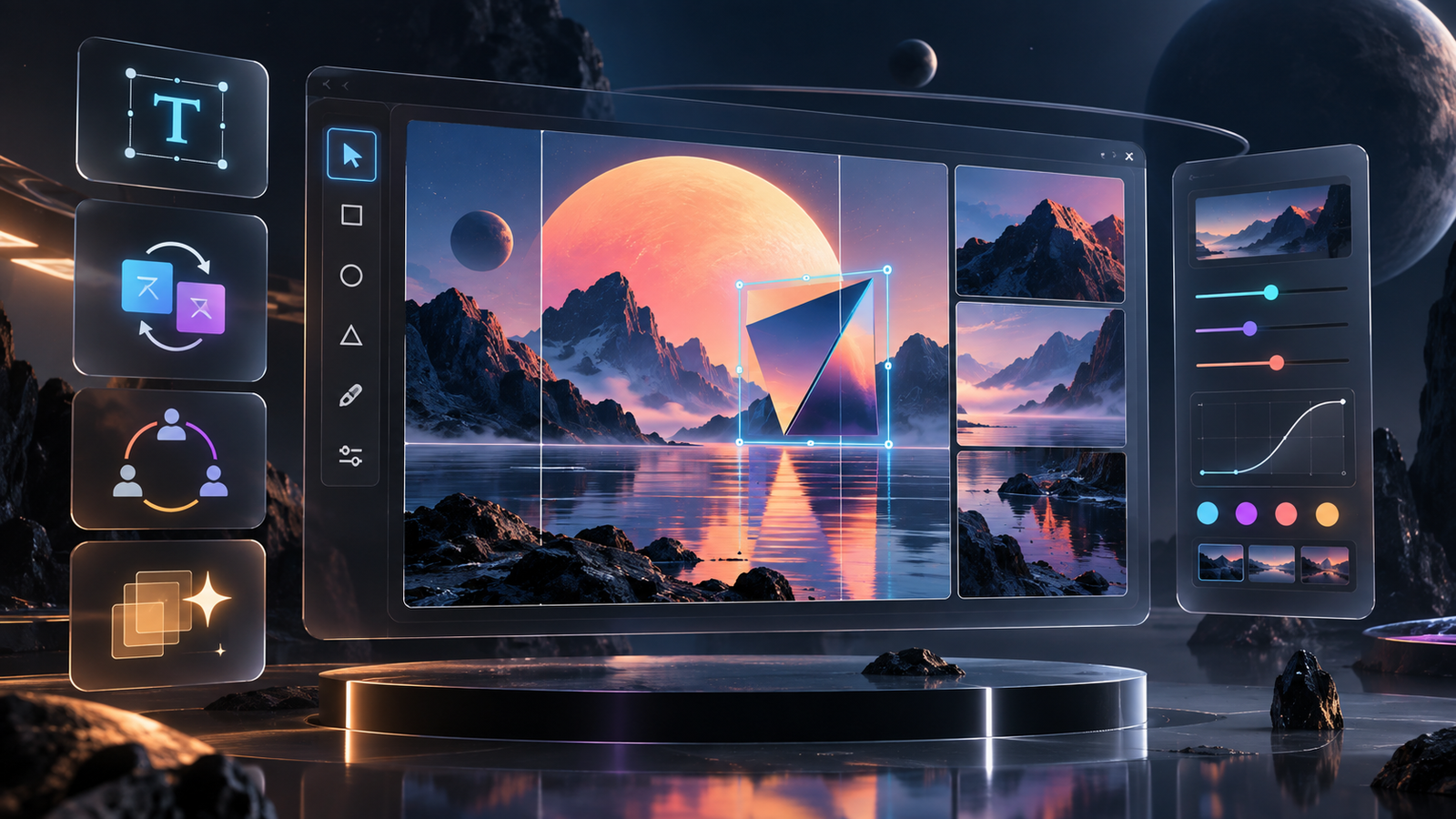
Google Pics became generally available on September 1, 2026, adding a dedicated AI image-creation and editing canvas to Google Workspace. It can generate images from prompts, isolate objects for local edits, replace or translate words inside an image, use reference images, collaborate with teammates, and upscale finished work.
The appealing part is not simply another text-to-image box. Pics is designed around controlled revisions: select the part that needs changing, describe the adjustment, compare alternatives, and preserve a version history. That can shorten common workflows for social graphics, presentation visuals, posters, product mockups, and digital illustrations. It is still generative AI, however, so important text, logos, people, products, and factual visuals need human review.
What is Google Pics?
Google Pics is a desktop AI image generator and editor in Google Workspace, powered by Google’s Nano Banana models. It creates images from prompts, edits selected objects, changes or translates text inside images, accepts reference images, supports collaboration, and can upscale exports to 2K or 4K. Access requires an eligible Google AI or Workspace plan.
Google offers Pics as a standalone web app at pics.new and as an editing surface inside Docs and Slides. Drive integration was still rolling out when this guide was checked on September 13, 2026. That combination makes Pics less like a separate art generator and more like an image workspace connected to files and documents teams already share.
Who can access Google Pics?
Google’s current availability page lists the following eligible account types:
| Account type | Eligible plans |
|---|---|
| Personal | Google AI Pro, Google AI Ultra 5x, and Google AI Ultra 20x |
| Business | Business Standard and Business Plus |
| Enterprise | Enterprise Standard and Enterprise Plus |
| Education | Google AI Pro for Education |
| Add-on access | AI Expanded Access and certain legacy AI add-ons |
Pics is desktop-only at launch. Google supports the two most recent versions of Chrome and Firefox, plus Microsoft Edge on Windows; other browsers may work without every feature. The service supports many languages and is available wherever Workspace accounts are supported, although Google says personal accounts in Germany cannot currently use it.
Rollout timing also matters. Rapid Release Workspace domains began a gradual rollout on September 1, while Scheduled Release domains begin on September 15. Google says each rollout can take up to 15 days, so an eligible account may not see Pics immediately. Workspace administrators can also disable it for a domain, organizational unit, or group.
Google Pics features that matter
Generate several options from one prompt
Start with a description and Pics returns multiple variations. That reduces the temptation to accept the first plausible result. Compare composition, readability, unwanted artifacts, and whether the image matches its intended placement before choosing a direction.
Edit a selected object instead of the whole image
Object segmentation lets you hover over and isolate an element, surface, or background area. You can change or remove that region while aiming to preserve the rest of the composition. Chrome Unboxed’s hands-on test used this workflow to replace signs, remove parked cars, and turn a night scene into a sunset; the reviewer reported that lighting and perspective remained coherent in that example. One successful test is useful evidence, not a guarantee for every image.
Rewrite or translate words inside an image
Pics can edit, reformat, or translate individual text elements while trying to retain their visual style. PCWorld found this especially promising in a controlled demonstration. Treat every generated word as draft copy: zoom in and proofread spelling, punctuation, names, dates, prices, and translated meaning before publishing.
Use visual references
You can upload images from a computer, Drive, or Google Photos and tell Pics how to use their style or elements. Supported uploads include JPG, PNG, BMP, and TIFF. Only use assets you own or have permission to modify, and avoid asking a model to imitate a living artist or reproduce protected brand material.
Collaborate and recover earlier versions
Like other Workspace apps, Pics supports shared links and teammate collaboration. A persistent version history lets users revert unwanted changes. That is valuable when several people refine one campaign visual, but teams should still decide who owns final approval and export.
Crop and upscale for delivery
Pics includes crops for web, social, print, and digital use, plus 2K and 4K upscaling. Higher resolution does not repair factual or anatomical mistakes, and Google warns that high-resolution downloads consume promotional usage limits faster.
A practical Google Pics workflow
- Define the output before prompting. Write down the audience, channel, aspect ratio, required message, visual style, and non-negotiable elements.
- Start with a clean brief. Describe subject, setting, composition, palette, lighting, mood, and intended negative space. Avoid stuffing conflicting styles into one request.
- Compare the first variations. Choose the best composition, not merely the most detailed image. Large structural problems are harder to fix through many small edits.
- Edit one region at a time. Select an object or area and state exactly what should change and what must remain unchanged.
- Add text late. Finalize layout first, then insert or revise words. Proofread the actual pixels rather than trusting the prompt.
- Check at full size. Inspect faces, hands, reflections, shadows, product geometry, logos, small text, and background objects.
- Ask a teammate to review. Use collaboration for a second check of clarity, rights, brand consistency, and unintended meaning.
- Export for the destination. Crop to the required ratio, choose 2K or 4K only when useful, then compress the delivery copy. ToolNexa’s image-compression guide explains how to reduce file size without unnecessary visible loss.
- Keep the source and version history. Preserve the editable project so a future correction does not require regenerating the whole image.
An example prompt you can adapt
Create a clean 16:9 editorial illustration for a beginner guide to remote teamwork. Show three abstract workspaces connected by subtle lines around one shared project board. Use a calm navy, teal, and warm amber palette, soft studio lighting, simple geometric forms, and generous empty space on the left for a headline. No logos, no readable text, no watermark, and no photorealistic faces.After selecting a result, make targeted requests such as “change only the background to a pale neutral gray,” “remove the device on the right while preserving the shadows,” or “make the central board larger without changing the color palette.” Specific constraints make it easier to judge whether each revision succeeded.
Google Pics versus a full design suite
| Need | Where Pics looks useful | When another tool may fit better |
|---|---|---|
| Fast concept generation | Multiple prompt-based options in one Workspace file | Highly repeatable template systems across many campaigns |
| Local photo changes | Conversational edits to selected objects and regions | Pixel-level masking, compositing, color management, or retouching |
| Text inside existing artwork | AI-assisted replacement and translation that attempts to preserve style | Exact typography, accessible layout, or brand-governed typesetting |
| Team review | Links, collaboration, Drive, Docs, and Slides integration | A mature approval, asset-management, or publishing pipeline |
| Final output | Cropping and 2K/4K upscaling | Print preflight, vector delivery, layered source files, or advanced export controls |
PCWorld noted that Canva retained an advantage in established design tools and integrations during its early comparison. The practical conclusion is not that Pics replaces every editor. It is strongest when prompt-driven image work and Workspace collaboration matter more than precise manual production controls.
Limits and checks before you rely on it
- Access is paid or organization-controlled. There is no generally available free personal tier listed in Google’s current eligibility table.
- Generative features have limits. Google promises higher access through at least February 28, 2027, but says access may be limited afterward. It does not publish one universal generation count on the availability page.
- Embedded use follows separate limits. Generative edits from Docs and Slides use those products’ existing Nano Banana image limits.
- Rollout is gradual. Eligibility does not guarantee immediate visibility, particularly for Scheduled Release domains.
- Output can still be wrong. Check words, identities, products, culturally sensitive imagery, data visualizations, and anything presented as evidence.
- Rights still matter. A tool accepting an upload does not establish your permission to alter or redistribute it.
Frequently asked questions
Is Google Pics free?
Google’s current public availability table requires an eligible paid Google AI plan, Workspace edition, education plan, or add-on. Workspace administrators can also control access. Check your account because plan names, regional eligibility, and limits can change.
Is Google Pics the same as Google Photos?
No. Google Pics is a standalone Workspace image-creation and editing canvas, while Google Photos organizes and edits a photo library. Pics can import an image from Google Photos, but the products serve different primary purposes.
Can Google Pics edit an existing image?
Yes. You can upload JPG, PNG, BMP, or TIFF files from your computer or add images from Drive and Google Photos. Pics supports prompt-based, reference-based, and element-level edits.
Does Google Pics work on a phone?
Google’s help documentation lists Pics as desktop-only as of September 13, 2026. Use a supported desktop browser and confirm future mobile availability in Google’s current help page.
Can Google Pics replace Canva or Photoshop?
It may replace parts of a workflow—especially generation, local AI edits, text replacement, and Workspace collaboration. A full design or photo editor remains more suitable for exact typography, layered production files, detailed retouching, vector work, and advanced export controls.
Conclusion
Google Pics is most compelling as a controlled AI editing layer inside Workspace, not merely a generator. Start with a clear brief, select the best structure, revise one region at a time, proofread every word, and preserve human approval for the final file. That workflow captures the speed of generative editing without treating a plausible-looking output as finished work.